Body
Description
Eduroam (education roaming) is the secure, world-wide roaming access service developed for the international research and education community.
Instructions
Before You Begin
Before attempting to connect to the eduroam Wi-Fi network, make sure you have your campus account username (e.g., username@mail.mccneb.edu or username@mccneb.edu) and MCC password ready.
Steps
Assisted Setup
Assisted device setup is available using the Configuration Assistant Tool.
Please click the eduroam button and then run the installer.

The CAT is available for Windows, Linux, Apple, Chrome OS, and Android.
Android:
Before you proceed with installation on Android systems, please make
sure that you have installed the geteduroam application. This
application is available from these sites: , , and will use the configuration file downloaded from CAT to create all necessary settings.
Chrome OS:
After downloading the file, open the Chrome browser and browse to this URL: chrome://network.
Then, use the 'Import ONC file' button. The import is silent; the new
network definitions will be added to the preferred networks.
Manual Setup
Manual Setup - eduroam for Android
On your device, navigate to the area where you can view all Wi-Fi networks that are in range and select eduroam from the list of available networks.
Use the following settings to configure your device. Not all settings may be required to connect your device to eduroam.
- Identity: Your Campus Identity. Example: (username@mail.mccneb.edu or username@mccneb.edu)
- Anonymous Identity: anything@mccneb.edu or anything@mail.mccneb.edu. Only the @mccneb.edu or @mail.mccneb.edu part is used.
- Password: Your standard Campus login password (same as Canvas, OneDrive, etc.)
- CA Certificate: Use System Certificates
- Security: 802.1x EAP or WPA/WPA2-Enterprise
- EAP Method: PEAP
- Phase-2 Authentication: MSCHAPV2
- IP Settings: DHCP
- Proxy Settings: none
- Online Certificate Status: Request Certificate Status
- Domain: mccneb.edu
Manual Setup - eduroam for iOS
- On iOS and iPadOS, navigate to the Settings app and tap Wi-Fi to view all Wi-Fi networks that are in range and select eduroam from the list of available networks.
- Your device will now prompt you to log in to the network. Use your Campus Identity to authenticate. Your username must include the campus domain. Example: (username@mail.mccneb.edu or username@mccneb.edu).

- Accept the eduroam certificate by tapping Trust and authenticate with your device passcode, if prompted.

Manual Setup - eduroam for macOS
- On your Mac, navigate to the Wi-Fi icon in the top right of your desktop to view all Wi-Fi networks that are in range and select eduroam from the list of available networks.
- Your Mac will now prompt you to log in to the network. Use your Campus Identity to authenticate. Your username must include the campus domain. Example: (username@mail.mccneb.edu or username@mccneb.edu).

- Accept the eduroam certificate by clicking Continue and authenticate using your local macOS credentials, if prompted.

Manual Setup - eduroam for Windows
- On Windows, navigate to the bottom right of your desktop to view all Wi-Fi networks that are in range, and select eduroam from the list of available networks.
- Windows will now prompt you to log in to the network. Use your Campus Identity to authenticate. Your username must include the campus domain. Example: (username@mail.mccneb.edu or username@mccneb.edu).
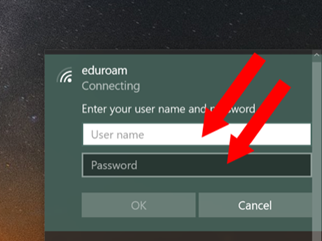
- Accept the eduroam certificate and authenticate if prompted.
Additional Information
For the most efficient support experience, please submit a ticket using the "Get Help" button, or call 531-622-2900.
For more information about eduroam, visit the eduroam About page.